

There is a particular kind of frustration that accumulates slowly. You paste a chart from your analysis script into a Word document. You save it as report_final_v3_FINAL.docx. A colleague asks for a PDF version. You spend twenty minutes adjusting margins. The chart no longer fits. You have been here before.
This is not a productivity problem. It is an architectural one. Office software treats documents as the primary artifact and data as a foreign object that must be manually imported. For engineers who work with code and data every day, that relationship is backwards.
Quarto flips it. The source file is the document. The data, the code, and the prose all live in the same file, and the outputs — HTML, PDF, slides, Word — are generated artifacts. You version control the source. You render the outputs. If the data changes, you re-render.
This article walks through the full setup: getting Quarto running locally, wiring it into VS Code, configuring it for Python, and producing a real multi-format document from a real dataset. The goal is not a toy example. It is a workflow you can actually ship.
What Quarto Actually Is
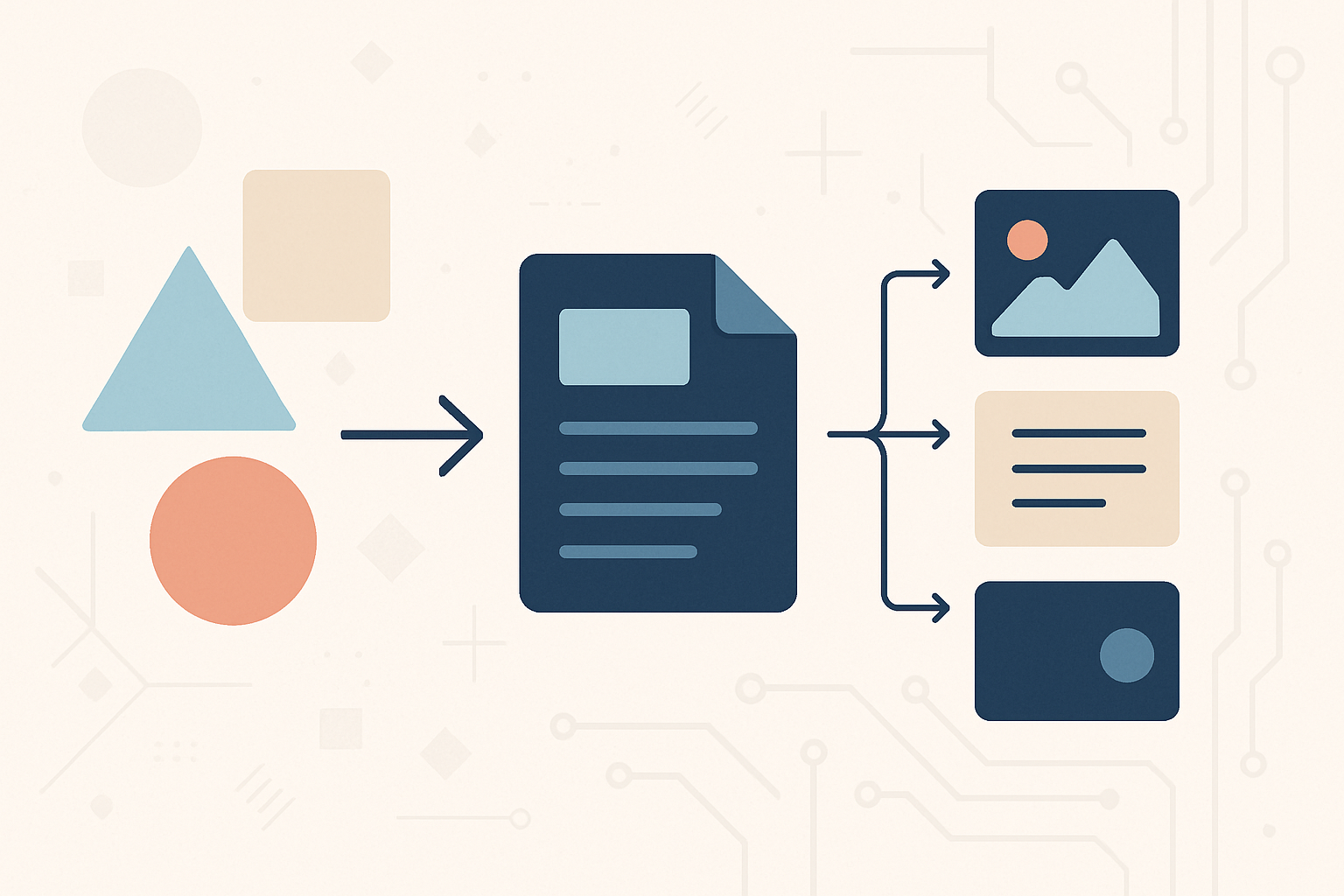
Quarto is an open-source scientific and technical publishing system developed by Posit (the company formerly known as RStudio). Think of it as the next generation of R Markdown, but designed from the ground up to be language-agnostic. It supports Python, R, Julia, and Observable JS natively.
The core file format is .qmd — Quarto Markdown. It is a plain text file with a YAML front matter block at the top, standard Markdown prose in the body, and fenced code blocks that Quarto executes during the render phase. The output of those code blocks, including tables and plots, gets embedded directly into the rendered document.
One source file. Many outputs. That is the whole pitch, and it holds up.
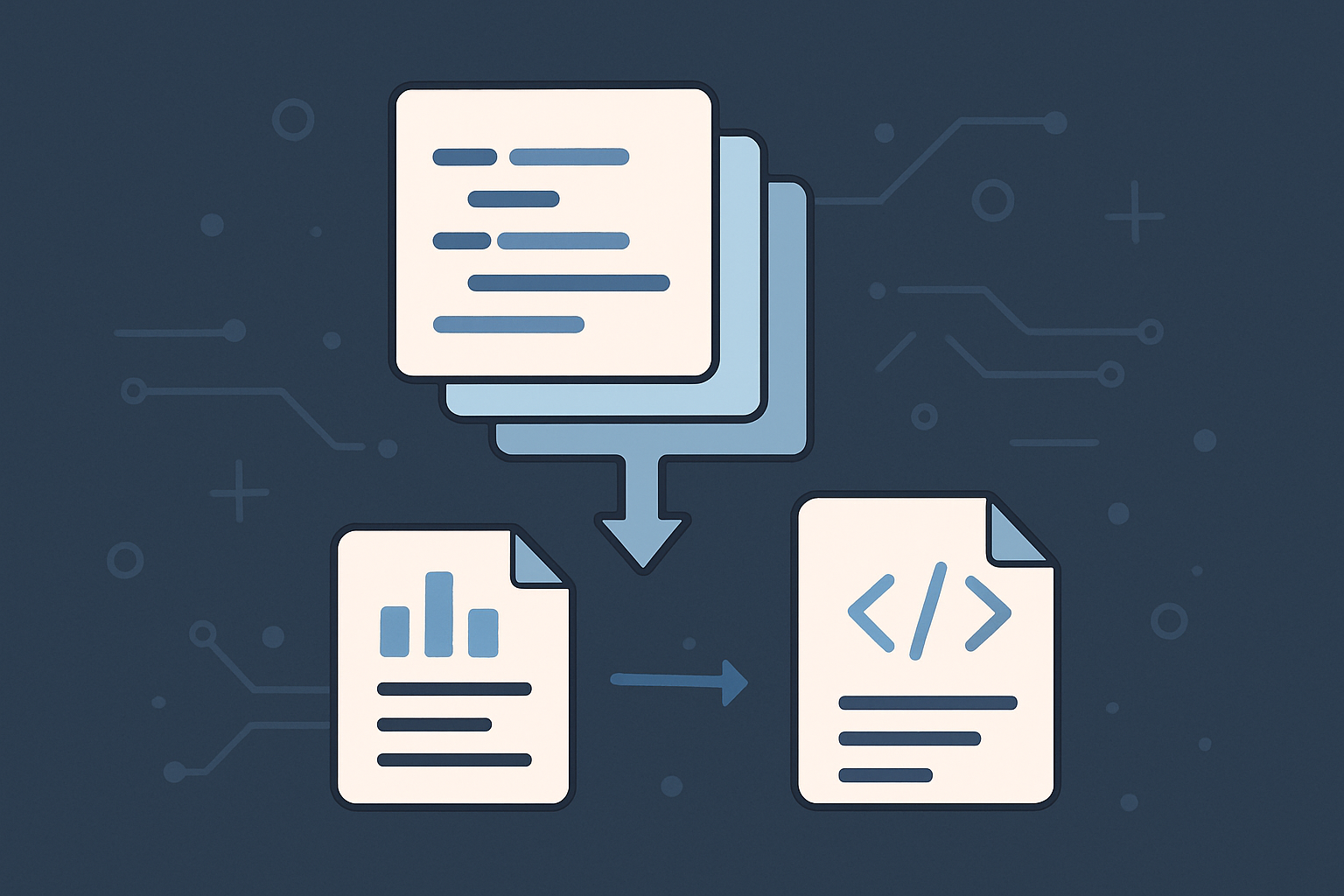
The rendering pipeline looks roughly like this: Quarto calls the appropriate compute engine (Jupyter for Python, knitr for R), executes the code cells, captures outputs, converts the resulting Markdown through Pandoc, and produces the final document. For PDF output, it routes through a LaTeX engine. For HTML, Pandoc handles everything directly.
Takumi's Take: The Pandoc dependency is both Quarto's greatest strength and a hidden source of grief. Pandoc is extraordinarily capable, but version mismatches between Quarto's bundled Pandoc and any system-level Pandoc installation have caused me an afternoon of debugging more than once. Always let Quarto use its own bundled Pandoc. Do not install Pandoc separately unless you have a specific reason and know what you are doing.
Installing the Toolchain
Quarto needs three things to do useful work with Python: the Quarto CLI itself, a Python environment with Jupyter, and a LaTeX distribution if you want PDF output.
Quarto CLI
On macOS with Homebrew:
brew install --cask quartoOn Windows with Chocolatey:
choco install quartoOr grab the installer directly from quarto.org. After installation, verify it:
quarto --versionYou should see something like 1.6.x. If the command is not found, check your PATH.
LaTeX for PDF Output
If you only need HTML output, skip this section. PDF output requires a LaTeX engine, and the choice matters.
Quarto recommends TinyTeX, which you can install through Quarto itself:
quarto install tinytexTinyTeX is minimal by design. It downloads packages on demand during rendering. That sounds convenient but it causes problems in air-gapped environments or on slow connections. If a package is missing mid-render, the whole process fails.
The alternative is a full TeX Live installation. It is several gigabytes and takes a while to install, but it contains everything. Renders never fail because of a missing package. For a production environment where you need reliable, reproducible output, full TeX Live is the safer choice.
If you go with TinyTeX and encounter a missing package error like this:
! LaTeX Error: File `fvextra.sty' not found.Install the missing package manually:
tlmgr install fvextraFor the PDF engine, LuaLaTeX handles Unicode and custom fonts far better than the older pdfLaTeX. Use it for any document that contains non-ASCII characters or that requires custom font loading.
Python Environment
Quarto works with any Python installation, but isolating your project dependencies is non-negotiable. The following uses conda-forge (via Miniforge or Mambaforge), which tends to resolve scientific packages more reliably than pip alone.
mkdir my-report && cd my-report

# Create a virtual environment inside the project directory
conda create --prefix ./.venv python=3.12 -y
conda activate ./.venv

# Install the core packages
mamba install jupyter ipykernel numpy pandas matplotlib seaborn openpyxl -y
Placing the virtual environment inside the project directory keeps everything self-contained. It also makes it straightforward to point Quarto at the right Python executable.
Create a file named _environment in the project root with the following content:
QUARTO_PYTHON="./.venv/bin/python"On Windows, adjust the path:
QUARTO_PYTHON="./.venv/python.exe"Without this file, Quarto sometimes resolves to the base conda environment or the system Python instead of your project environment. This causes import errors that are tedious to debug because the error message does not tell you which Python was actually invoked.
VS Code Extension
The official Quarto extension for VS Code (extension ID: quarto.quarto) adds syntax highlighting, YAML front matter completion, and a live preview panel. Install it from the Extensions sidebar.
Once installed, open any .qmd file and you will see a "Preview" button in the top-right corner of the editor. Clicking it starts quarto preview and opens the result in a side panel or browser tab.
The preview server watches the file for changes and re-renders automatically on save. It is fast enough for iterative authoring as long as your code cells are not doing expensive computations.
Project Layout
A clean project structure prevents a surprising number of Quarto problems. Paths in .qmd files are resolved relative to the file's location, not relative to where you run the quarto command. Keep your project self-contained.
A minimal structure:
my-report/
├── .venv/                  # conda environment (git-ignored)
├── data/
│   └── sales_data.xlsx     # raw input data
├── fonts/
│   └── DejaVuSans.ttf      # optional: custom fonts for PDF
├── _environment            # tells Quarto which Python to use
└── report.qmd              # the source document
Paths that contain spaces or non-ASCII characters can cause silent failures in the LaTeX pipeline. Keep all directory names ASCII and hyphen-separated. This is not a Quarto limitation specifically; it is a LaTeX limitation that Quarto inherits.
Writing a Real Document
The .qmd front matter block controls everything about the output. Here is a realistic configuration for a report that renders to both PDF and HTML from the same source:
---
title: "Regional Sales Analysis Q2 2025"
author: "Engineering Team"
date: today
date-format: "MMMM D, YYYY"
toc: true
number-sections: true

format:
  pdf:
    pdf-engine: lualatex
    latex-tinytex: false
    latex-auto-install: false
    geometry:
      - top=20mm
      - left=20mm
      - right=20mm
      - bottom=25mm
    mainfont: "DejaVuSans.ttf"
    fontoptions:
      - "Path=fonts/"
    header-includes:
      - \usepackage{fvextra}
      - \fvset{breaklines=true}
  html:
    code-fold: true
    html-math-method: katex
    theme: cosmo

execute:
  echo: true
  warning: false
---
A few things worth explaining here.
Setting latex-tinytex: false and latex-auto-install: false prevents Quarto from trying to manage LaTeX packages automatically. If you have TeX Live installed, you want it to use that installation without interference. Letting Quarto auto-install packages is fine for experimentation but creates non-deterministic build behavior in a real project.
The fvextra package with breaklines=true handles long lines in code blocks. Without it, any code line that extends beyond the page width will overflow the margin in the PDF output. This is one of those things you will only discover after generating a PDF and sending it to a stakeholder.
For font loading, specifying the font file name in mainfont and the directory in fontoptions with Path=fonts/ is more reliable than providing a full path in mainfont. LuaLaTeX resolves the path relative to the document root in this configuration.
Code Cells and Output Embedding
Here is where Quarto earns its keep. A Python code cell in a .qmd file looks like a standard Markdown fenced code block, but with {python} as the language identifier. Quarto executes it and embeds the output.
#| label: tbl-summary
#| tbl-cap: "Top 5 regions by total sales"

import pandas as pd

df = pd.read_excel('data/sales_data.xlsx', sheet_name='Sheet1')

top_regions = (
    df.groupby('region')['revenue']
    .sum()
    .sort_values(ascending=False)
    .head(5)
    .reset_index()
    .rename(columns={'region': 'Region', 'revenue': 'Total Revenue (USD)'})
)

top_regions.style.format({'Total Revenue (USD)': '{:,.0f}'}).hide(axis='index')
The #| prefix introduces cell options. label gives the output a cross-reference ID. tbl-cap sets the table caption. You can then reference this table anywhere in the document with @tbl-summary, and Quarto generates the correct numbered reference in both HTML and PDF output.
The same pattern works for figures:
#| label: fig-revenue-by-region
#| fig-cap: "Monthly revenue trend by region, Q2 2025"
#| fig-width: 9
#| fig-height: 5

import matplotlib.pyplot as plt
import matplotlib.font_manager as fm
from pathlib import Path

# Load a font that covers the characters you need
font_path = Path('fonts/DejaVuSans.ttf')
fm.fontManager.addfont(str(font_path))
prop = fm.FontProperties(fname=str(font_path))
plt.rcParams['font.family'] = prop.get_name()
plt.rcParams['axes.unicode_minus'] = False

monthly = df.groupby(['month', 'region'])['revenue'].sum().unstack()

fig, ax = plt.subplots(figsize=(9, 5))
for region in monthly.columns:
    ax.plot(monthly.index, monthly[region], marker='o', label=region, linewidth=1.8)

ax.set_xlabel('Month')
ax.set_ylabel('Revenue (USD)')
ax.set_title('Monthly Revenue by Region')
ax.legend(loc='upper left', framealpha=0.7)
ax.grid(axis='y', linestyle='--', alpha=0.4)
plt.tight_layout()
plt.show()
The explicit font loading via fontManager.addfont() is important. Matplotlib's font cache does not always pick up fonts placed in non-standard directories. Loading the font explicitly and getting its name via FontProperties guarantees that the font you specify is the font that gets used. The axes.unicode_minus setting prevents the minus sign from rendering as a box in some configurations.
Rendering
With the environment active, rendering is a single command:
# Render to PDF
quarto render report.qmd --to pdf

# Render to HTML
quarto render report.qmd --to html

# Render all formats defined in the YAML
quarto render report.qmd
The --to flag overrides whatever is in the YAML format block. This is useful when you want a quick HTML preview without waiting for the LaTeX pipeline.
For live editing:
quarto preview report.qmd --no-browser --port 8080This starts a local HTTP server and watches the file for changes. Every time you save, Quarto re-executes the modified cells and updates the preview. If you have VS Code's integrated browser, navigate to http://localhost:8080 directly.
One practical note: when the YAML format block declares multiple output formats, quarto preview renders only the first one listed. If PDF is listed first and you want to preview the HTML version quickly, either reorder the YAML temporarily or use --to html explicitly.
What Changes in Your Workflow
The deeper shift is not about tooling. It is about what the source of truth becomes.
In an Office-based workflow, the document is the artifact. Data lives elsewhere, possibly in the same directory, possibly not. Updating the document when the data changes is a manual process. Version control is filename-based: report_2025_Q2_final.docx.
In a Quarto workflow, the .qmd file is the source of truth. The rendered PDF or HTML is a build artifact, much like a compiled binary. You do not commit compiled binaries to your repository. You commit the source and regenerate the artifacts.
This integrates naturally with CI/CD. A GitHub Actions workflow that triggers on push, runs quarto render, and publishes the output to GitHub Pages or uploads the PDF as a release asset is maybe thirty lines of YAML. The report is always current with the data and the code.
It also integrates naturally with code review. Changes to analysis logic are visible as diffs in the .qmd file, just like any other code change. Reviewers can see exactly what changed, not just compare two opaque binary blobs.
Takumi's Take: The one place this workflow genuinely struggles is stakeholder collaboration. Most non-technical stakeholders cannot comment on a pull request, and they expect to receive a Word document they can annotate. Quarto can output
.docx, so you can still generate that artifact. But the document they edit and return to you cannot be merged back into the source. Accept this limitation upfront and establish a clear protocol: the.qmdis the canonical source, and any changes from the Word review cycle get manually reconciled back into it. This is the same tradeoff as any generated-code workflow.
The Version Control Angle
One of the original frustrations that pushes engineers toward tools like Quarto is losing track of which report version is current. The .qmd approach solves this correctly.
The source file diffs cleanly. Prose changes look like prose diffs. Data processing changes look like code diffs. YAML configuration changes are visible. A git log on the report file is a meaningful audit trail of what changed and why.
For the output artifacts, two common approaches work:
First, never commit rendered outputs. Treat them like build artifacts. Anyone with the source and dependencies can regenerate them. This keeps the repository lean.
Second, commit rendered outputs alongside source, but in a separate directory. Some teams find it useful to have the generated PDF committed so that stakeholders can view it without running the render pipeline themselves. Use a CI job to regenerate outputs on every main branch commit and push the update automatically.
Either approach is defensible. The critical thing is to have an explicit policy and enforce it consistently.
Where to Go from Here
The setup described here covers the most common use case: a single Python-backed report with PDF and HTML output. Quarto supports considerably more.
Quarto Projects let you manage multi-file documentation sites, books, or collections of reports with a shared _quarto.yml configuration. Parameterized reports let you run the same .qmd with different input variables and generate a separate output for each, which is useful for per-client or per-region report generation.
The more interesting frontier is the integration between Quarto and modern LLM tooling. Because .qmd files are plain text with clear structure, they are straightforward to generate and modify programmatically. An agent that reads a dataset, writes the analysis code, and produces a complete .qmd report is not a distant prospect. The tool is already built for it.
The question is whether the reports that come out of that pipeline will be any good. That is still a human problem, and probably should be.