

There is a reasonable chance you have written Python code to open an .xlsx file without ever asking what that file actually is. You called openpyxl.load_workbook(), iterated over rows, and moved on. That is fine. But understanding what lives on disk before any library touches it will change how you debug, optimize, and automate Excel-related workflows. This article covers the internal structure of the OOXML format, why it was designed that way, and what that means for Python code you write today.
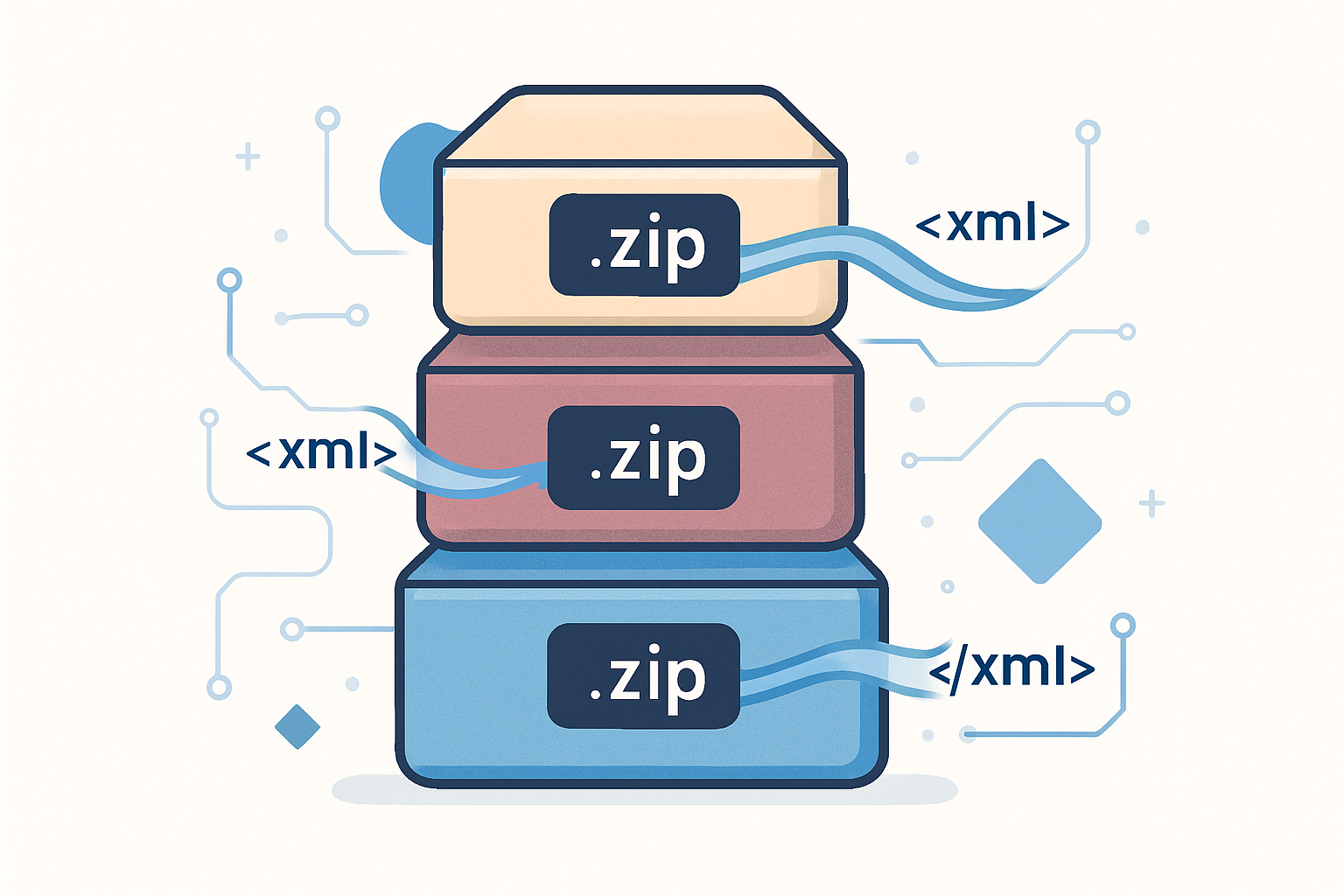
An Excel File Is a ZIP Archive
Rename any .xlsx file to .zip and extract it. Your operating system will decompress it without complaint. What you get is a directory tree of XML files, a couple of relationship descriptor files, and occasionally a binary blob for VBA macros.
Try it:
cp report.xlsx report.zip
unzip report.zip -d report_extracted
tree report_extracted
The output looks roughly like this:
report_extracted/
├── [Content_Types].xml
├── _rels/
│   └── .rels
├── docProps/
│   ├── app.xml
│   └── core.xml
└── xl/
    ├── workbook.xml
    ├── styles.xml
    ├── sharedStrings.xml
    ├── _rels/
    │   └── workbook.xml.rels
    └── worksheets/
        ├── sheet1.xml
        └── sheet2.xml
No magic. No proprietary binary encoding. Each piece of the workbook lives in a separate, human-readable XML file. The ZIP container holds them together, compresses them, and presents a single file to the user.
This design is not a Microsoft invention. It follows a specification called Open Packaging Conventions, or OPC, which is standardized under ISO/IEC 29500. The same ZIP-plus-XML pattern shows up in .docx, .pptx, .epub, .jar, .war, and .apk files. If you have an Android APK nearby, rename it to .zip and extract it. Same idea.
Why ZIP as the Container
Four properties made ZIP the obvious choice when Microsoft redesigned Office formats in the mid-2000s.
First, compression ratio. XML is verbose by nature. A single cell reference looks like <c r="A1" t="s"><v>0</v></c>. Multiply that across tens of thousands of cells and the raw XML grows large quickly. The Deflate algorithm used by ZIP compresses repetitive XML patterns extremely well. Real-world .xlsx files often compress to 10 to 20 percent of their uncompressed size.
Second, multi-file aggregation. The workbook definition, individual sheets, styles, and string data naturally belong in separate concerns. Shipping them as a single archive means users handle one file instead of a directory.
Third, no patent encumbrance. ZIP has existed since 1989. Libraries exist in every language. There are no licensing complications. For a format intended for broad adoption, that matters.
Fourth, random access. ZIP stores a central directory at the end of the archive. A reader can seek directly to worksheets/sheet3.xml without scanning the entire file from the start. TAR archives do not offer this. For large workbooks where you need only one sheet, the difference is measurable.
Takumi's Take: The random access property is the one that actually matters in production. I have seen pipelines that open a 200 MB workbook to read a single summary sheet. With openpyxl's
read_onlymode and an understanding of the underlying ZIP structure, you can reduce I/O to just the relevantsheetN.xmlentry. Most engineers never think about this because the library hides the ZIP entirely. Once you know it is there, you can work around it.
What Each File Does
Understanding the role of each XML file makes it easier to interpret library behavior and debug edge cases.
[Content_Types].xml declares the MIME type of every file in the package. Excel validates this on open. If you manually add a file to the ZIP without registering it here, Excel will either ignore it or refuse to open the archive.
_rels/.rels is the root relationship file. It points to the primary document part, which for a workbook is xl/workbook.xml. The .rels convention means every file can have a corresponding relationship file in a _rels/ subdirectory next to it.
xl/workbook.xml lists all sheets in the workbook, named ranges, and calculation properties. Sheet order in the UI is determined here, not by file order in the ZIP.
xl/styles.xml contains all formatting definitions: fonts, fills, borders, number formats, and cell styles. A cell in sheet1.xml does not inline its formatting. It references an index into the style tables defined here. This is why modifying a cell style with openpyxl sometimes changes formatting on cells you did not touch: multiple cells can share the same style index.
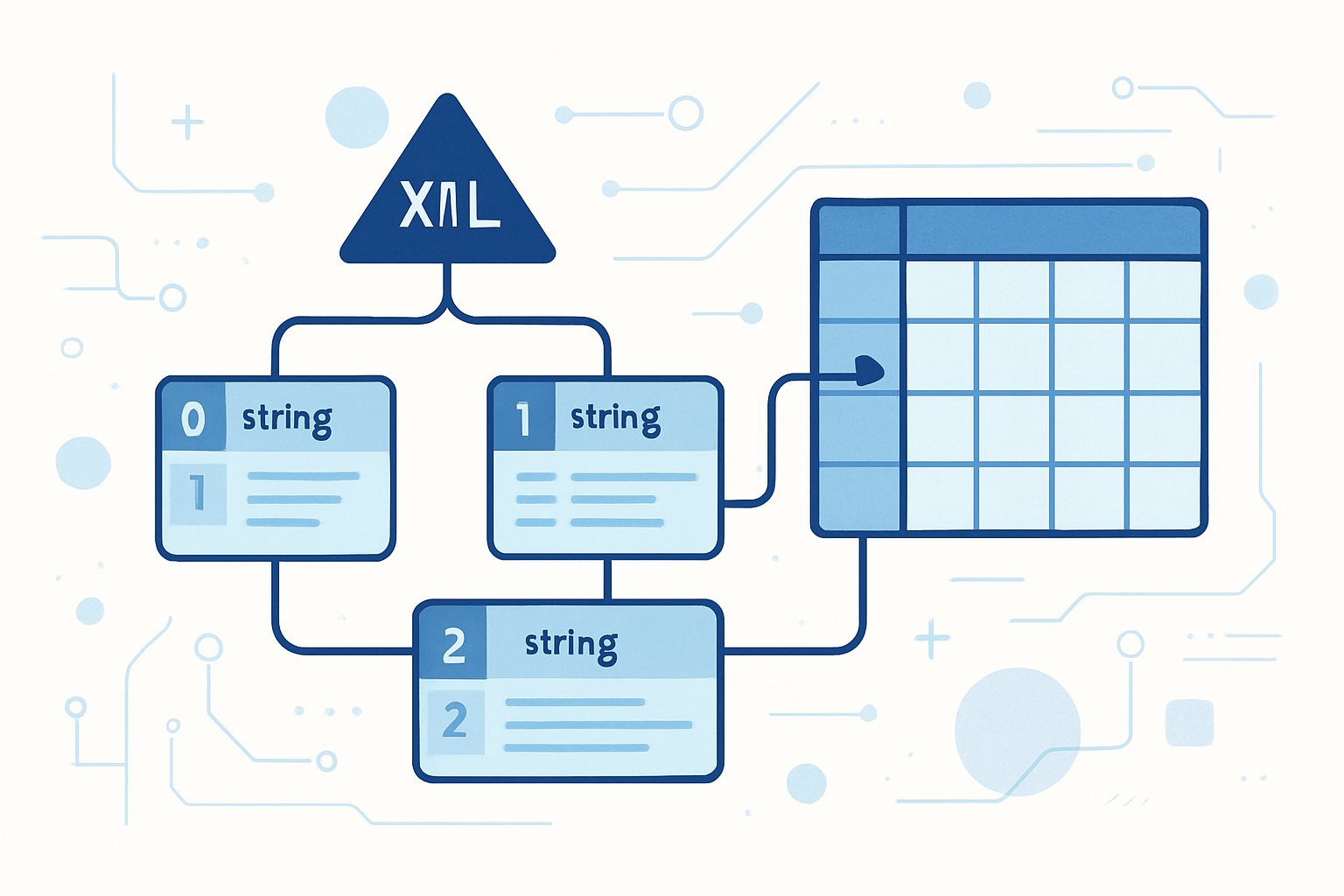
xl/sharedStrings.xml is a string pool. Every text value that appears in any cell is stored once in this file. Cells reference strings by index rather than storing the text inline.
xl/worksheets/sheetN.xml holds the actual cell data for a given sheet. Numeric values are stored inline. String values reference the shared strings pool.
The sharedStrings Pool in Detail
This is the part of the OOXML format that surprises most engineers when they first see it. Consider a sheet with the text "Tokyo" in 500 cells. The naive approach would store the string 500 times. OOXML stores it once.
Inside sharedStrings.xml:
<sst xmlns="http://schemas.openxmlformats.org/spreadsheetml/2006/main" count="3" uniqueCount="2">
  <si><t>Tokyo</t></si>
  <si><t>Osaka</t></si>
</sst>
Inside sheet1.xml, cells referencing these strings look like this:
<c r="A1" t="s"><v>0</v></c>
<c r="A2" t="s"><v>1</v></c>
<c r="A3" t="s"><v>0</v></c>
The attribute t="s" marks the cell as a shared string reference. The <v> element holds the zero-based index into the sharedStrings.xml list. Numeric cells omit the t attribute entirely and store the value directly:
<c r="B1"><v>42750</v></c>When openpyxl loads a workbook, it parses sharedStrings.xml first and builds an in-memory list. Every time it encounters a t="s" cell, it looks up the index in that list. For large files this list can be substantial. That is the main reason openpyxl's documentation recommends read_only=True mode for large workbooks: it avoids loading the entire shared strings pool into memory upfront and processes the XML as a stream instead.
Here is what that looks like in practice:
import openpyxl

# Standard mode: entire workbook loaded into memory
wb = openpyxl.load_workbook("large_report.xlsx")
ws = wb.active
for row in ws.iter_rows(values_only=True):
    process(row)
wb.close()

# Read-only streaming mode: significantly lower memory footprint
wb = openpyxl.load_workbook("large_report.xlsx", read_only=True)
ws = wb.active
for row in ws.iter_rows(values_only=True):
    process(row)
wb.close()  # Must close explicitly in read_only mode
The trade-off is that read_only mode gives you no ability to write back to the workbook and some cell properties are unavailable.
The .xlsx, .xlsm, and .xlsb Distinctions
These three extensions are not interchangeable, and the differences matter for Python tooling.
.xlsx is the standard format. No macros. Pure ZIP plus XML. Every major Python library supports it.
.xlsm adds a VBA macro project stored as a binary blob at xl/vbaProject.bin. The outer structure is still ZIP plus XML. openpyxl can read and write .xlsm files, but it does not parse or execute the VBA. If you need to preserve macros, you must pass keep_vba=True to load_workbook. Failing to do so strips the macro project from the file silently on save.
# Preserving macros when round-tripping an xlsm file
wb = openpyxl.load_workbook("macro_report.xlsm", keep_vba=True)
ws = wb.active
ws["B2"] = 9999
wb.save("macro_report_updated.xlsm")
.xlsb is different in kind, not just degree. It stores sheet data in a binary format rather than XML. The outer ZIP container remains, but the sheetN.xml files are replaced with binary equivalents. Reading speed for large files improves significantly because parsers skip XML tokenization. The cost is that openpyxl cannot read it at all. You need a separate library:
import pyxlsb

with pyxlsb.open_workbook("massive_dataset.xlsb") as wb:
    with wb.get_sheet(1) as sheet:
        for row in sheet.rows():
            values = [item.v for item in row]
            process(values)
For files over roughly 50 MB, the performance difference between .xlsx and .xlsb is worth measuring before committing to a format in a data pipeline.
Directly Manipulating the ZIP Structure
Knowing the internal structure gives you a useful escape hatch when libraries fall short. Suppose you receive a corrupted .xlsx file that Excel refuses to open. Before giving up, try extracting the ZIP and inspecting xl/worksheets/sheet1.xml directly. Corruption is often localized to one XML file. You can sometimes recover the data by reading the XML as plain text, even if the workbook as a whole is unreadable.
Another practical use: high-speed generation of simple workbooks from a template. If you have a fixed layout and only need to change cell values, creating a valid OOXML file by string manipulation is faster than going through openpyxl's full object model. The approach requires care, but it works:
import zipfile
import shutil
import os

def fast_fill_template(template_path: str, output_path: str, cell_values: dict) -> None:
    """
    Replace cell values in a worksheet XML directly, bypassing openpyxl.
    cell_values: dict mapping cell references to string replacements already
    encoded as shared string entries. This is a low-level technique.
    Only use it when profiling shows openpyxl to be a genuine bottleneck.
    """
    work_dir = "_xlsx_workdir"

    # Extract the template
    with zipfile.ZipFile(template_path, "r") as zf:
        zf.extractall(work_dir)

    # Read and patch sheet1.xml
    sheet_path = os.path.join(work_dir, "xl", "worksheets", "sheet1.xml")
    with open(sheet_path, "r", encoding="utf-8") as f:
        content = f.read()

    for old_value, new_value in cell_values.items():
        content = content.replace(old_value, new_value)

    with open(sheet_path, "w", encoding="utf-8") as f:
        f.write(content)

    # Repack as ZIP with .xlsx extension
    shutil.make_archive("_xlsx_output", "zip", work_dir)
    shutil.move("_xlsx_output.zip", output_path)
    shutil.rmtree(work_dir)
This is a sharp tool. If you touch [Content_Types].xml or the .rels files without maintaining their integrity, Excel will refuse to open the result. Always test against the specific Excel version your users run.
Why LLMs Can Edit Excel Files
There is one more implication of the ZIP plus XML structure that is worth noting as AI-assisted tooling becomes commonplace in engineering workflows.
The legacy .xls format, used before Office 2007, was a proprietary binary compound document. Parsing it required reconstructing allocation tables, handling sector chains, and computing checksums. No language model handles that kind of byte-level manipulation reliably.
The OOXML format changed the equation. An LLM editing an .xlsx file is essentially doing text manipulation. Extract the ZIP. Read the XML. Modify strings. Repack. The model operates in its natural domain the entire time. Tools like Claude Code, when they modify Excel files programmatically, are ultimately calling into openpyxl or a similar library, which is itself doing exactly what the template example above does, with more correctness guarantees.
Microsoft framed the move to OOXML in 2007 primarily as an interoperability play, partly in response to pressure from the European Commission. Whatever the motivation, the practical outcome is that Office documents became text-editable artifacts. Twenty years later that decision is enabling AI agents to manipulate spreadsheets at scale. Few technical choices have such long and unforeseeable tails.
Practical Implications for Production Code
A few concrete guidelines follow from understanding the format.
Avoid opening large workbooks in default mode when you only need a subset of the data. Know which sheet you need, and if the library supports partial loading, use it.
When writing many rows of repetitive string data, be aware that openpyxl manages the shared strings pool for you. Avoid calling cell.value = some_string in a tight loop with write_only=False on a large workbook. Switch to write_only mode:
wb = openpyxl.Workbook(write_only=True)
ws = wb.create_sheet()

for record in large_dataset:
    ws.append([record.name, record.value, record.category])

wb.save("output.xlsx")
write_only mode streams rows directly to the XML without building an in-memory cell graph. Memory usage stays flat regardless of row count.
For files that will be under version control, reconsider whether .xlsx is the right format at all. ZIP content changes are not diffable with standard Git tooling. A corrupt binary diff is not useful in a code review. If the workbook is primarily data rather than presentation, storing the data as CSV and generating the .xlsx from it at build time is a cleaner approach.
Finally, when debugging a workbook that exhibits strange formatting behavior, extract the ZIP and inspect xl/styles.xml directly. Cell style indexes are small integers, and tracing which index a misbehaving cell references will tell you exactly which style definition is causing the problem, faster than stepping through library internals.
Where to Go From Here
The OOXML specification runs to roughly 6000 pages across its various parts. You do not need to read all of it. But the core of what a working engineer needs, the package structure, the shared strings pattern, the relationship files, fits in an afternoon of exploration. Extract a real .xlsx file from your own codebase and read the XML with your own eyes. The abstractions your libraries provide will make considerably more sense afterward, and the next time something breaks in a subtle way, you will know where to look.